
If you work with an AI assistant, you probably know the routine: export a campaign report, paste the numbers into the chat, ask for a comparison, and copy the suggestions back. It works, but it is slow, and the assistant only ever sees what someone remembered to paste.
Since v6.0.2, Octeth has a built-in connector that removes the copying. Your clients add one URL to Claude, ChatGPT or any assistant that supports remote connectors, sign in with their normal Octeth account, and the assistant works with their real lists, campaigns and reports. This post explains how it works, and why most of the effort went into the controls you get as the operator.
One URL, a Normal Sign-In
Every Octeth installation now serves a connector at /mcp on its app domain, for example https://app.example.com/mcp. MCP, the Model Context Protocol, is the open standard that assistants such as Claude and ChatGPT use to call tools in other software.
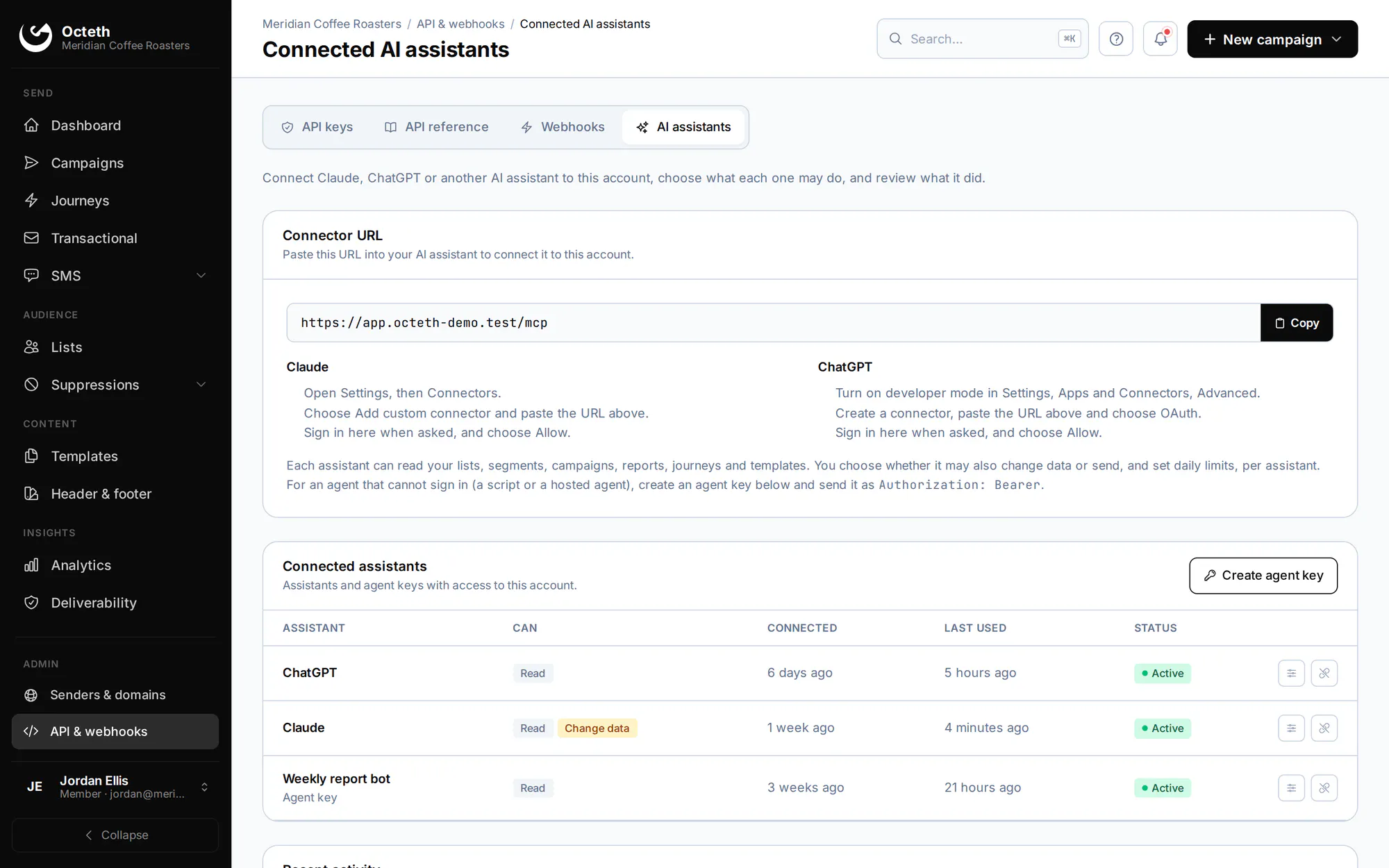
Connecting takes about a minute. A client copies the URL from the new Connected AI assistants page, pastes it into the assistant's connector settings, and signs in to Octeth when the assistant opens the login page. Two-factor authentication works as usual. A consent screen shows exactly what the assistant will be able to do, and the client clicks Allow.
There is nothing to install and no API key to copy by hand. It works in Claude and ChatGPT on the web and on the desktop, and in coding agents such as Claude Code, Codex and Gemini CLI. For scripts and hosted agents that cannot open a browser, a client creates an agent key on the same page and sends it as a bearer token.
Once connected, a client can ask things like "Which of last month's campaigns had the best click rate?", "How many subscribers are in my VIP segment?" or "Why did this campaign underperform compared with the last five?" The assistant looks the answer up in the account and replies in the chat.
The Question I Kept Asking
Building the connector itself was the smaller part of the work. The question that shaped almost every decision was this: what should an assistant be allowed to do on a platform where one wrong action can send email to a million people?
An assistant that can only read is useful, but limited. An assistant that can send is powerful, and on a shared sending infrastructure it is also a risk to everyone else on your IP addresses. You run the platform and you carry the reputation, so we built the connector around limits that you set and Octeth enforces.
Controls That Belong to the Operator
Read, change data and send are separate permissions. Each user group has an AI agent access policy with four levels: off, read only, change data, and send. It starts at read only. You might allow sending for your trusted, long-standing clients and keep new signups at read only.
Caps you set per user group. The policy also holds a daily send limit, a maximum number of recipients per send, and a confirmation threshold. Your clients can tighten these for each assistant they connect, but never loosen them.
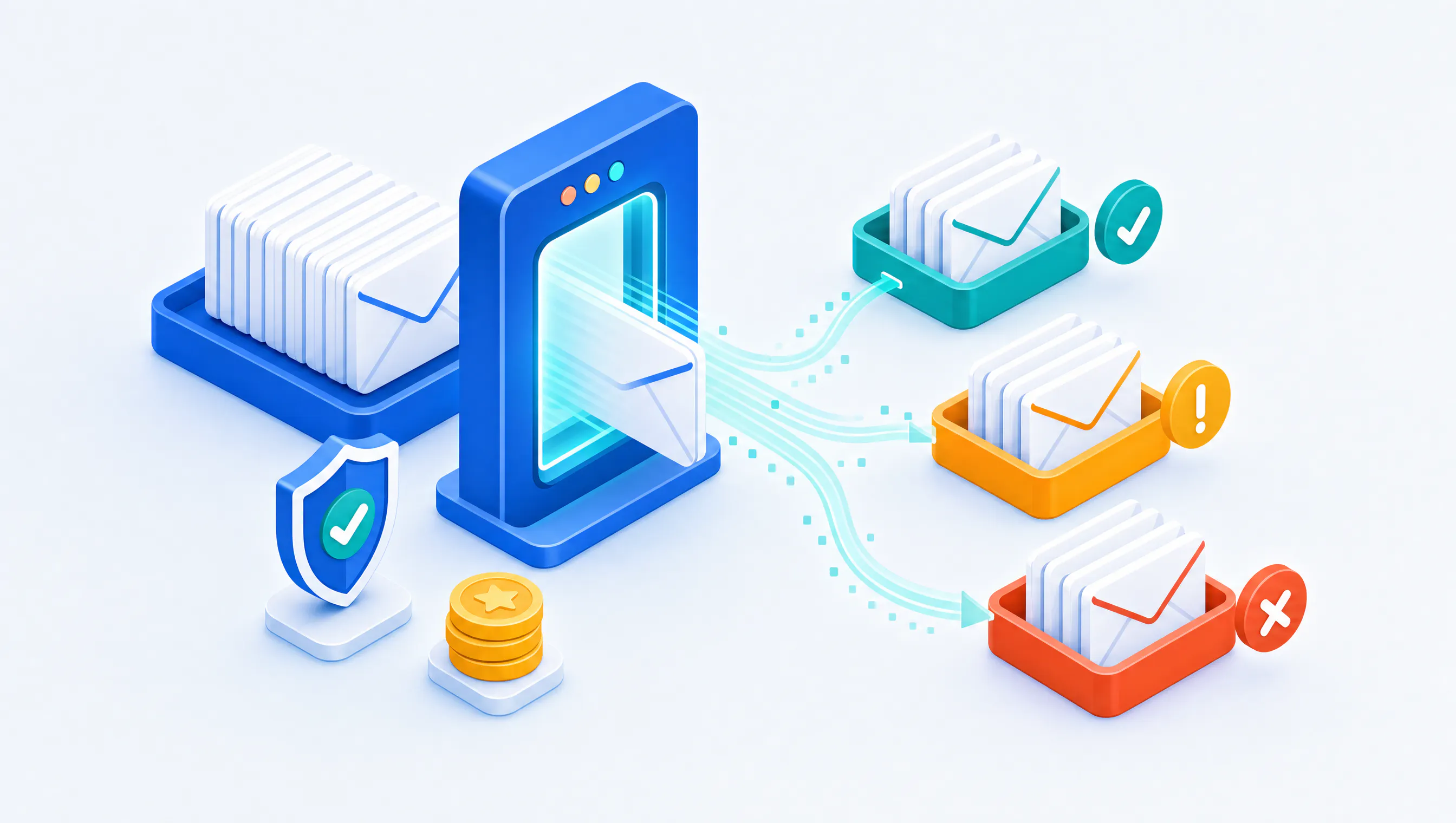
A confirmation step before large sends. A send above the confirmation threshold does not go out on the first call. Octeth returns a preview of what would be sent and to how many people, and the assistant has to repeat the request with a one-time token. In practice that means the assistant shows the person the preview and waits for a yes.
Enforced in the API, not only in the connector. These rules are checked by Octeth's API itself, on every call that an assistant's key makes. An agent that skips the connector and calls the API directly hits exactly the same limits.
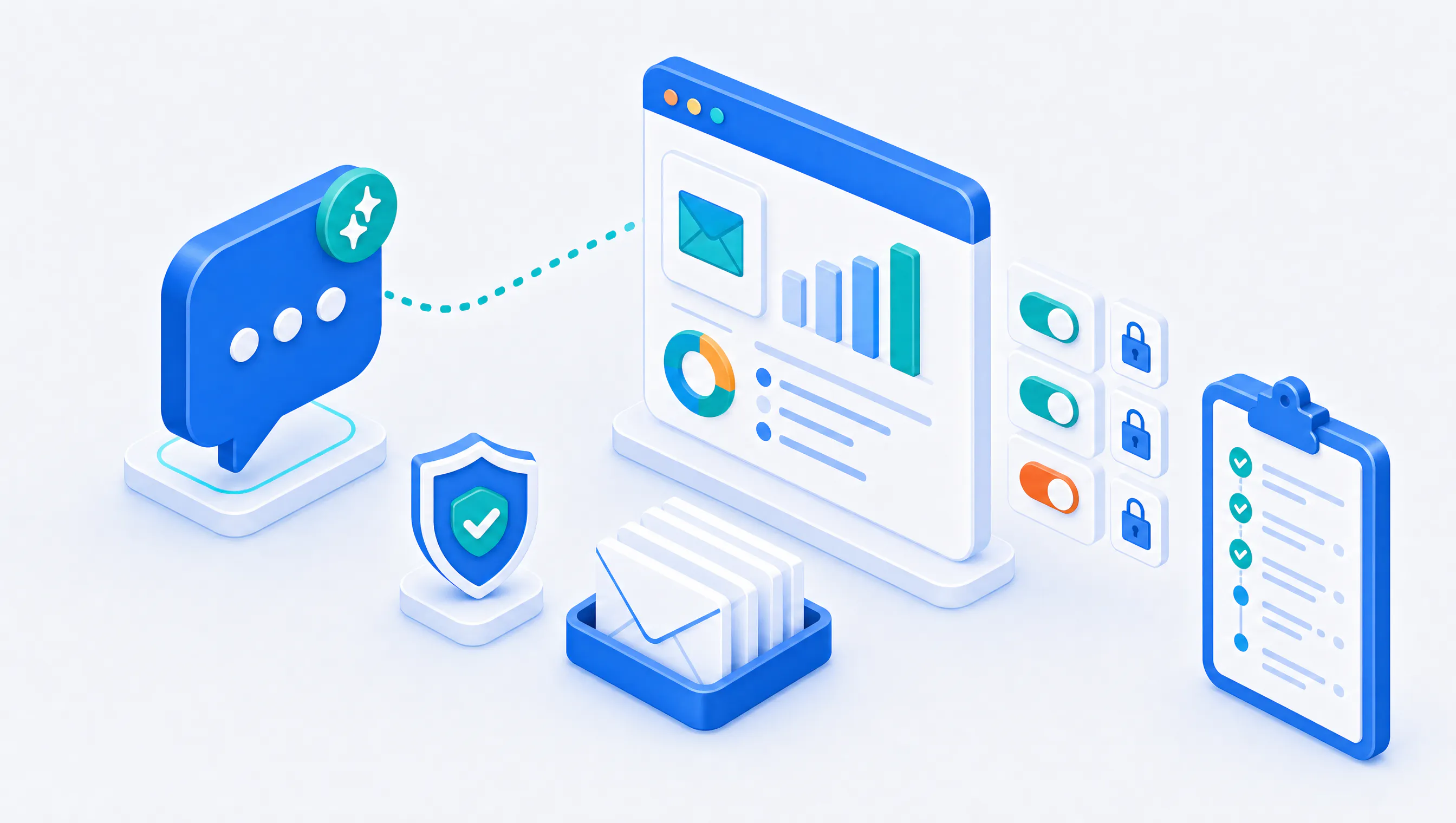
Every connection is visible and revocable. Each connected assistant gets its own API key. Your client sees every assistant and agent key on the Connected AI assistants page, along with the last 25 tool calls, their results and how long each took. Disconnecting an assistant deletes its key, and access ends immediately.
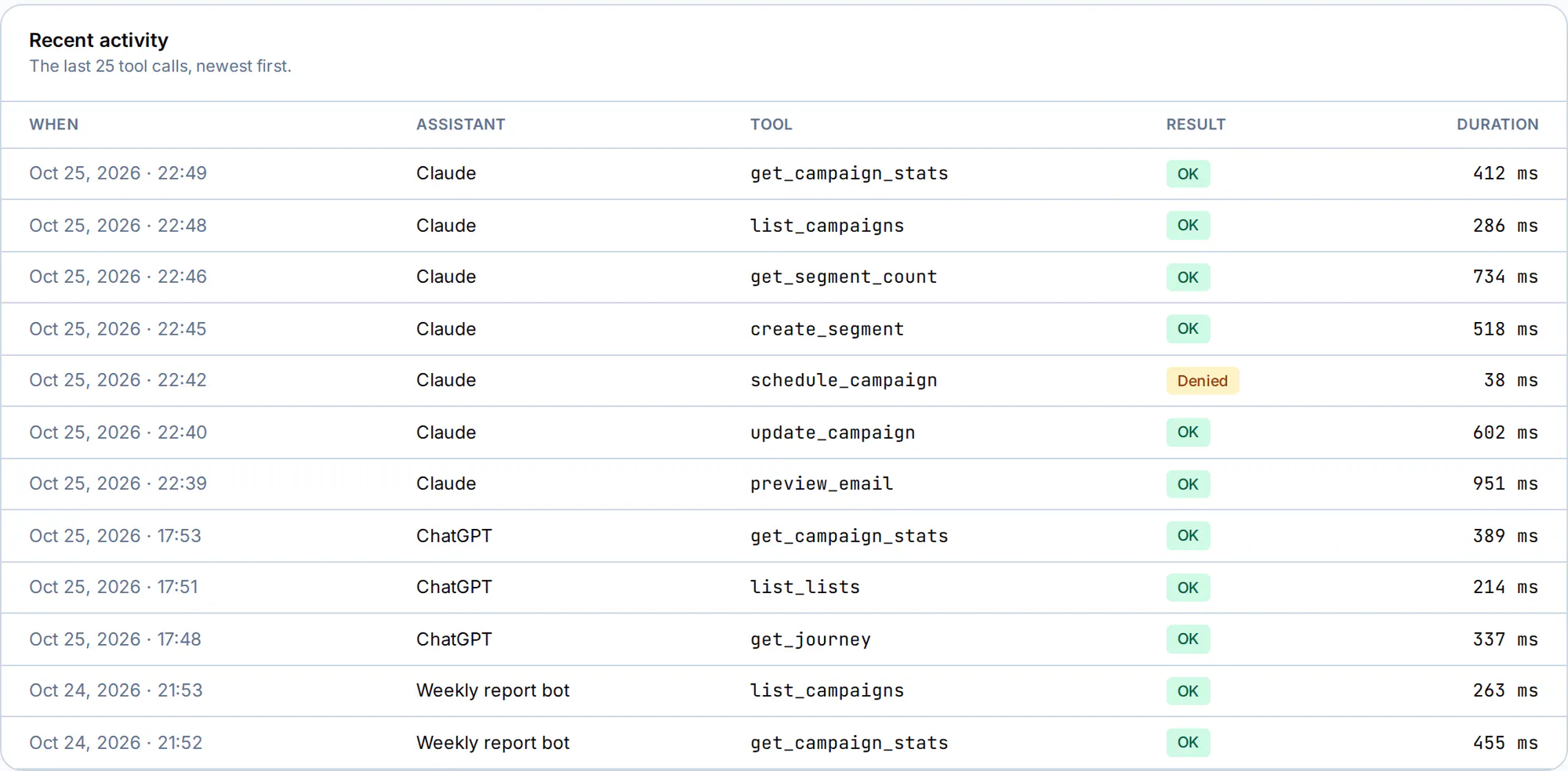
In the activity log above, Claude tried to schedule a campaign on a connection that may change data but not send. Octeth refused the call, and the refusal is right there in the log. That is the behaviour I wanted: a client can experiment with an assistant without wondering what it might have done.
What the Assistant Can Do
With read access, an assistant can look at lists, segments, campaigns and their reports, journeys and email templates. With change data allowed, it can also create and update segments, templates, lists, subscribers and draft campaigns, none of which sends anything. With send allowed, it can schedule and send campaigns and send test emails.
Clients who use the transactional email gateway get tools for it too. An agent can send through the gateway, look up message events, and add and verify sending domains, all without ever holding a sender key.
For common jobs, Octeth also hands the assistant ready-made guided workflows. One plans a campaign from a goal, another finds inactive subscribers and drafts a win-back email, another checks a list's health, and another explains a campaign's results in plain words. Each one adapts to the permissions of the connection. On a read-only connection the assistant plans and explains, then tells the person which steps to finish in Octeth themselves.
An Assistant for Your Own Team
The connector is not only for your clients. Your staff can connect an assistant to the operator side of Octeth as well.
An operator assistant can start the day with a risk digest of the accounts that need attention, look into a single user's sending activity and sender domains, find stuck campaigns, and, after a confirmation, throttle or suspend an account or require approval for its campaigns. Every one of those actions shows a preview first and is logged.
It also helps with setup: it reports what is left to configure on a new installation, and can create and test delivery servers, create user groups and set up bounce and feedback loop mailboxes. We kept firm boundaries here too. The assistant can change where a delivery server sends only if the assistant itself added that server and no mail flows through it yet. Passwords are write-only, secrets come back redacted, and the connector never touches server configuration or restarts anything.
Self-Hosted, So It Stays Yours
Because Octeth runs on your own servers, the connector does too. The assistant talks to your installation, under your domain, through the same API and the same tenant rules as the rest of Octeth, so a client's assistant only ever sees that client's account. If the connector does not fit your business, you can switch it off entirely. The changelog has the details for operators.
For developers who prefer a local server, the separate @octeth/mcp package we released in v5.9.2 is still available. It runs on your own machine through Node.js, suits scripted use and MCP clients that run local servers, and can manage several accounts from one server. For most people, though, the built-in connector is now the simpler choice.
The AI assistants guide walks through connecting Claude, ChatGPT and the coding agents step by step.
What I Am Watching Next
This is the first version of something I expect to grow, and I would rather grow it from real use than from guesses. If you offer the connector to your clients, I would like to hear which tasks they hand to an assistant, and which ones they still prefer to do themselves.
Existing clients can log in to the Octeth Client Area to download the latest version.
If you are interested in Octeth, fill in the contact form at octeth.com/demo/ and we will get back to you.